Types for Google Apps Card v1 API
- class google.apps.card_v1.types.Action(mapping=None, *, ignore_unknown_fields=False, **kwargs)[source]
Bases:
proto.message.MessageAn action that describes the behavior when the form is submitted. For example, you can invoke an Apps Script script to handle the form. If the action is triggered, the form values are sent to the server.
Google Workspace add-ons and Chat apps:
- function
A custom function to invoke when the containing element is clicked or otherwise activated.
For example usage, see Read form data.
- Type
- parameters
List of action parameters.
- Type
MutableSequence[google.apps.card_v1.types.Action.ActionParameter]
- load_indicator
Specifies the loading indicator that the action displays while making the call to the action.
- persist_values
Indicates whether form values persist after the action. The default value is
false.If
true, form values remain after the action is triggered. To let the user make changes while the action is being processed, set`LoadIndicator<https://developers.google.com/workspace/add-ons/reference/rpc/google.apps.card.v1#loadindicator>`__ toNONE. For card messages in Chat apps, you must also set the action’s`ResponseType<https://developers.google.com/workspace/chat/api/reference/rest/v1/spaces.messages#responsetype>`__ toUPDATE_MESSAGEand use the same`card_id<https://developers.google.com/workspace/chat/api/reference/rest/v1/spaces.messages#CardWithId>`__ from the card that contained the action.If
false, the form values are cleared when the action is triggered. To prevent the user from making changes while the action is being processed, set`LoadIndicator<https://developers.google.com/workspace/add-ons/reference/rpc/google.apps.card.v1#loadindicator>`__ toSPINNER.- Type
- interaction
Optional. Required when opening a dialog.
What to do in response to an interaction with a user, such as a user clicking a button in a card message.
If unspecified, the app responds by executing an
action—like opening a link or running a function—as normal.By specifying an
interaction, the app can respond in special interactive ways. For example, by settinginteractiontoOPEN_DIALOG, the app can open a dialog. When specified, a loading indicator isn’t shown. If specified for an add-on, the entire card is stripped and nothing is shown in the client.
- required_widgets
Optional. Fill this list with the names of widgets that this Action needs for a valid submission.
If the widgets listed here don’t have a value when this Action is invoked, the form submission is aborted.
Google Workspace add-ons and Chat apps:
- Type
MutableSequence[str]
- all_widgets_are_required
Optional. If this is true, then all widgets are considered required by this action.
Google Workspace add-ons and Chat apps:
- Type
- class ActionParameter(mapping=None, *, ignore_unknown_fields=False, **kwargs)[source]
Bases:
proto.message.MessageList of string parameters to supply when the action method is invoked. For example, consider three snooze buttons: snooze now, snooze one day, or snooze next week. You might use
action method = snooze(), passing the snooze type and snooze time in the list of string parameters.To learn more, see
`CommonEventObject<https://developers.google.com/workspace/chat/api/reference/rest/v1/Event#commoneventobject>`__.
- class Interaction(value)[source]
Bases:
proto.enums.EnumOptional. Required when opening a dialog.
What to do in response to an interaction with a user, such as a user clicking a button in a card message.
If unspecified, the app responds by executing an
action—like opening a link or running a function—as normal.By specifying an
interaction, the app can respond in special interactive ways. For example, by settinginteractiontoOPEN_DIALOG, the app can open a dialog.When specified, a loading indicator isn’t shown. If specified for an add-on, the entire card is stripped and nothing is shown in the client.
- Values:
- INTERACTION_UNSPECIFIED (0):
Default value. The
actionexecutes as normal.- OPEN_DIALOG (1):
Opens a dialog, a windowed, card-based interface that Chat apps use to interact with users.
Only supported by Chat apps in response to button-clicks on card messages. If specified for an add-on, the entire card is stripped and nothing is shown in the client.
- class LoadIndicator(value)[source]
Bases:
proto.enums.EnumSpecifies the loading indicator that the action displays while making the call to the action.
Google Workspace add-ons and Chat apps:
- Values:
- SPINNER (0):
Displays a spinner to indicate that content is loading.
- NONE (1):
Nothing is displayed.
- class google.apps.card_v1.types.BorderStyle(mapping=None, *, ignore_unknown_fields=False, **kwargs)[source]
Bases:
proto.message.MessageThe style options for the border of a card or widget, including the border type and color.
Google Workspace add-ons and Chat apps:
- type_
The border type.
- stroke_color
The colors to use when the type is
BORDER_TYPE_STROKE.To set the stroke color, specify a value for the
red,green, andbluefields. The value must be a float number between 0 and 1 based on the RGB color value, where0(0/255) represents the absence of color and1(255/255) represents the maximum intensity of the color.For example, the following sets the color to red at its maximum intensity:
"color": {
   "red": 1,
   "green": 0,
   "blue": 0,
}
The
alphafield is unavailable for stroke color. If specified, this field is ignored.- Type
google.type.color_pb2.Color
- class BorderType(value)[source]
Bases:
proto.enums.EnumRepresents the border types applied to widgets.
Google Workspace add-ons and Chat apps:
- Values:
- BORDER_TYPE_UNSPECIFIED (0):
Don’t use. Unspecified.
- NO_BORDER (1):
No border.
- STROKE (2):
Default value. Outline.
- class google.apps.card_v1.types.Button(mapping=None, *, ignore_unknown_fields=False, **kwargs)[source]
Bases:
proto.message.MessageA text, icon, or text and icon button that users can click. For an example in Google Chat apps, see Add a button.
To make an image a clickable button, specify an [
Image][google.apps.card.v1.Image] (not an [ImageComponent][google.apps.card.v1.ImageComponent]) and set anonClickaction.Google Workspace add-ons and Chat apps:
- icon
An icon displayed inside the button. If both
iconandtextare set, then the icon appears before the text.
- color
Optional. The color of the button. If set, the button
typeis set toFILLEDand the color oftextandiconfields are set to a contrasting color for readability. For example, if the button color is set to blue, any text or icons in the button are set to white.To set the button color, specify a value for the
red,green, andbluefields. The value must be a float number between 0 and 1 based on the RGB color value, where0(0/255) represents the absence of color and1(255/255) represents the maximum intensity of the color.For example, the following sets the color to red at its maximum intensity:
"color": {
   "red": 1,
   "green": 0,
   "blue": 0,
}
The
alphafield is unavailable for button color. If specified, this field is ignored.- Type
google.type.color_pb2.Color
- on_click
Required. The action to perform when a user clicks the button, such as opening a hyperlink or running a custom function.
- disabled
If
true, the button is displayed in an inactive state and doesn’t respond to user actions.- Type
- alt_text
The alternative text that’s used for accessibility. Set descriptive text that lets users know what the button does. For example, if a button opens a hyperlink, you might write: “Opens a new browser tab and navigates to the Google Chat developer documentation at https://developers.google.com/workspace/chat”.
- Type
- type_
Optional. The type of a button. If unset, button type defaults to
OUTLINED. If thecolorfield is set, the button type is forced toFILLEDand any value set for this field is ignored.
- class Type(value)[source]
Bases:
proto.enums.EnumOptional. The type of a button. If
colorfield is set, thetypeis forced toFILLED.- Values:
- TYPE_UNSPECIFIED (0):
Don’t use. Unspecified.
- OUTLINED (1):
Outlined buttons are medium-emphasis buttons. They usually contain actions that are important, but aren’t the primary action in a Chat app or an add-on.
- FILLED (2):
A filled button has a container with a solid color. It has the most visual impact and is recommended for the important and primary action in a Chat app or an add-on.
- FILLED_TONAL (3):
A filled tonal button is an alternative middle ground between filled and outlined buttons. They’re useful in contexts where a lower-priority button requires slightly more emphasis than an outline button would give.
- BORDERLESS (4):
A button does not have an invisible container in its default state. It is often used for the lowest priority actions, especially when presenting multiple options.
- class google.apps.card_v1.types.ButtonList(mapping=None, *, ignore_unknown_fields=False, **kwargs)[source]
Bases:
proto.message.MessageA list of buttons layed out horizontally. For an example in Google Chat apps, see Add a button.
Google Workspace add-ons and Chat apps:
- buttons
An array of buttons.
- Type
MutableSequence[google.apps.card_v1.types.Button]
- class google.apps.card_v1.types.Card(mapping=None, *, ignore_unknown_fields=False, **kwargs)[source]
Bases:
proto.message.MessageA card interface displayed in a Google Chat message or Google Workspace add-on.
Cards support a defined layout, interactive UI elements like buttons, and rich media like images. Use cards to present detailed information, gather information from users, and guide users to take a next step.
To learn how to build cards, see the following documentation:
For Google Chat apps, see Design the components of a card or dialog.
For Google Workspace add-ons, see Card-based interfaces.
Note: You can add up to 100 widgets per card. Any widgets beyond this limit are ignored. This limit applies to both card messages and dialogs in Google Chat apps, and to cards in Google Workspace add-ons.
Example: Card message for a Google Chat app
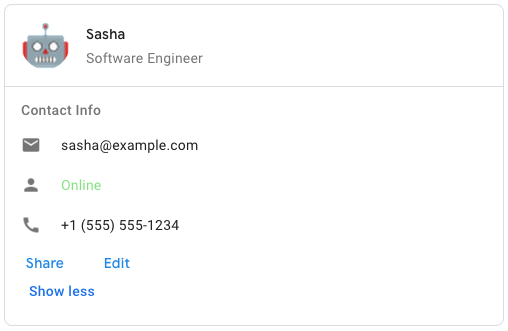
To create the sample card message in Google Chat, use the following JSON:
{
  "cardsV2": [
    {
      "cardId": "unique-card-id",
      "card": {
        "header": {
           "title": "Sasha",
           "subtitle": "Software Engineer",
           "imageUrl":
           "https://developers.google.com/workspace/chat/images/quickstart-app-avatar.png",
           "imageType": "CIRCLE",
           "imageAltText": "Avatar for Sasha"
         },
         "sections": [
           {
             "header": "Contact Info",
             "collapsible": true,
             "uncollapsibleWidgetsCount": 1,
             "widgets": [
               {
                 "decoratedText": {
                   "startIcon": {
                     "knownIcon": "EMAIL"
                   },
                   "text": "sasha@example.com"
                 }
               },
               {
                 "decoratedText": {
                   "startIcon": {
                     "knownIcon": "PERSON"
                   },
                   "text": "<font color=\"#80e27e\">Online</font>"
                 }
               },
               {
                 "decoratedText": {
                   "startIcon": {
                     "knownIcon": "PHONE"
                   },
                   "text": "+1 (555) 555-1234"
                 }
               },
               {
                 "buttonList": {
                   "buttons": [
                     {
                       "text": "Share",
                       "onClick": {
                        "openLink": {
                           "url": "https://example.com/share"
                         }
                       }
                     },
                     {
                       "text": "Edit",
                       "onClick": {
                         "action": {
                           "function": "goToView",
                           "parameters": [
                             {
                               "key": "viewType",
                               "value": "EDIT"
                             }
                           ]
                         }
                       }
                     }
                   ]
                 }
               }
             ]
           }
         ]
       }
    }
  ]
}
- header
The header of the card. A header usually contains a leading image and a title. Headers always appear at the top of a card.
- sections
Contains a collection of widgets. Each section has its own, optional header. Sections are visually separated by a line divider. For an example in Google Chat apps, see Define a section of a card.
- Type
MutableSequence[google.apps.card_v1.types.Card.Section]
- section_divider_style
The divider style between the header, sections and footer.
- card_actions
The card’s actions. Actions are added to the card’s toolbar menu.
For example, the following JSON constructs a card action menu with
SettingsandSend Feedbackoptions:"card_actions": [ { "actionLabel": "Settings", "onClick": { "action": { "functionName": "goToView", "parameters": [ { "key": "viewType", "value": "SETTING" } ], "loadIndicator": "LoadIndicator.SPINNER" } } }, { "actionLabel": "Send Feedback", "onClick": { "openLink": { "url": "https://example.com/feedback" } } } ]
- Type
MutableSequence[google.apps.card_v1.types.Card.CardAction]
- name
Name of the card. Used as a card identifier in card navigation.
- Type
The fixed footer shown at the bottom of this card.
Setting
fixedFooterwithout specifying aprimaryButtonor asecondaryButtoncauses an error. For Chat apps, you can use fixed footers in dialogs, but not card messages.
- display_style
In Google Workspace add-ons, sets the display properties of the
peekCardHeader.
- peek_card_header
When displaying contextual content, the peek card header acts as a placeholder so that the user can navigate forward between the homepage cards and the contextual cards.
- class CardAction(mapping=None, *, ignore_unknown_fields=False, **kwargs)[source]
Bases:
proto.message.MessageA card action is the action associated with the card. For example, an invoice card might include actions such as delete invoice, email invoice, or open the invoice in a browser.
- on_click
The
onClickaction for this action item.
Bases:
proto.message.MessageA persistent (sticky) footer that that appears at the bottom of the card.
Setting
fixedFooterwithout specifying aprimaryButtonor asecondaryButtoncauses an error.For Chat apps, you can use fixed footers in dialogs, but not card messages. For an example in Google Chat apps, see Add a persistent footer.
Google Workspace add-ons and Chat apps:
The primary button of the fixed footer. The button must be a text button with text and color set.
The secondary button of the fixed footer. The button must be a text button with text and color set. If
secondaryButtonis set, you must also setprimaryButton.
- class CardHeader(mapping=None, *, ignore_unknown_fields=False, **kwargs)[source]
Bases:
proto.message.MessageRepresents a card header. For an example in Google Chat apps, see Add a header.
Google Workspace add-ons and Chat apps:
- title
Required. The title of the card header. The header has a fixed height: if both a title and subtitle are specified, each takes up one line. If only the title is specified, it takes up both lines.
- Type
- subtitle
The subtitle of the card header. If specified, appears on its own line below the
title.- Type
- image_type
The shape used to crop the image.
- class DisplayStyle(value)[source]
Bases:
proto.enums.EnumIn Google Workspace add-ons, determines how a card is displayed.
- Values:
- DISPLAY_STYLE_UNSPECIFIED (0):
Don’t use. Unspecified.
- PEEK (1):
The header of the card appears at the bottom of the sidebar, partially covering the current top card of the stack. Clicking the header pops the card into the card stack. If the card has no header, a generated header is used instead.
- REPLACE (2):
Default value. The card is shown by replacing the view of the top card in the card stack.
- class DividerStyle(value)[source]
Bases:
proto.enums.EnumThe divider style of a card. Currently only used for dividers betweens card sections.
Google Workspace add-ons and Chat apps:
- Values:
- DIVIDER_STYLE_UNSPECIFIED (0):
Don’t use. Unspecified.
- SOLID_DIVIDER (1):
Default option. Render a solid divider.
- NO_DIVIDER (2):
If set, no divider is rendered. This style completely removes the divider from the layout. The result is equivalent to not adding a divider at all.
- class NestedWidget(mapping=None, *, ignore_unknown_fields=False, **kwargs)[source]
Bases:
proto.message.MessageA list of widgets that can be displayed in a containing layout, such as a
CarouselCard. Google Chat apps:This message has oneof fields (mutually exclusive fields). For each oneof, at most one member field can be set at the same time. Setting any member of the oneof automatically clears all other members.
- class Section(mapping=None, *, ignore_unknown_fields=False, **kwargs)[source]
Bases:
proto.message.MessageA section contains a collection of widgets that are rendered vertically in the order that they’re specified.
Google Workspace add-ons and Chat apps:
- header
Text that appears at the top of a section. Supports simple HTML formatted text. For more information about formatting text, see Formatting text in Google Chat apps and Formatting text in Google Workspace add-ons.
- Type
- widgets
All the widgets in the section. Must contain at least one widget.
- Type
MutableSequence[google.apps.card_v1.types.Widget]
- collapsible
Indicates whether this section is collapsible.
Collapsible sections hide some or all widgets, but users can expand the section to reveal the hidden widgets by clicking Show more. Users can hide the widgets again by clicking Show less.
To determine which widgets are hidden, specify
uncollapsibleWidgetsCount.- Type
- uncollapsible_widgets_count
The number of uncollapsible widgets which remain visible even when a section is collapsed.
For example, when a section contains five widgets and the
uncollapsibleWidgetsCountis set to2, the first two widgets are always shown and the last three are collapsed by default. TheuncollapsibleWidgetsCountis taken into account only whencollapsibleistrue.- Type
- collapse_control
Optional. Define the expand and collapse button of the section. This button will be shown only if the section is collapsible. If this field isn’t set, the default button is used.
- class google.apps.card_v1.types.Carousel(mapping=None, *, ignore_unknown_fields=False, **kwargs)[source]
Bases:
proto.message.MessageA carousel, also known as a slider, rotates and displays a list of widgets in a slideshow format, with buttons navigating to the previous or next widget.
For example, this is a JSON representation of a carousel that contains three text paragraph widgets.
{
  "carouselCards": [
    {
      "widgets": [
        {
          "textParagraph": {
            "text": "First text paragraph in carousel",
          }
        }
      ]
    },
    {
      "widgets": [
        {
          "textParagraph": {
            "text": "Second text paragraph in carousel",
          }
        }
      ]
    },
    {
      "widgets": [
        {
          "textParagraph": {
            "text": "Third text paragraph in carousel",
          }
        }
      ]
    }
  ]
}
- carousel_cards
A list of cards included in the carousel.
- Type
MutableSequence[google.apps.card_v1.types.Carousel.CarouselCard]
- class CarouselCard(mapping=None, *, ignore_unknown_fields=False, **kwargs)[source]
Bases:
proto.message.MessageA card that can be displayed as a carousel item. Google Chat apps:
- widgets
A list of widgets displayed in the carousel card. The widgets are displayed in the order that they are specified.
- Type
MutableSequence[google.apps.card_v1.types.Card.NestedWidget]
A list of widgets displayed at the bottom of the carousel card. The widgets are displayed in the order that they are specified.
- Type
MutableSequence[google.apps.card_v1.types.Card.NestedWidget]
- class google.apps.card_v1.types.Chip(mapping=None, *, ignore_unknown_fields=False, **kwargs)[source]
Bases:
proto.message.MessageA text, icon, or text and icon chip that users can click.
Google Workspace add-ons and Chat apps:
- icon
The icon image. If both
iconandtextare set, then the icon appears before the text.
- on_click
Optional. The action to perform when a user clicks the chip, such as opening a hyperlink or running a custom function.
- enabled
Whether the chip is in an active state and responds to user actions. Defaults to
true. Deprecated. Usedisabledinstead.- Type
- disabled
Whether the chip is in an inactive state and ignores user actions. Defaults to
false.- Type
- alt_text
The alternative text that’s used for accessibility. Set descriptive text that lets users know what the chip does. For example, if a chip opens a hyperlink, write: “Opens a new browser tab and navigates to the Google Chat developer documentation at https://developers.google.com/workspace/chat”.
- Type
- class google.apps.card_v1.types.ChipList(mapping=None, *, ignore_unknown_fields=False, **kwargs)[source]
Bases:
proto.message.MessageA list of chips layed out horizontally, which can either scroll horizontally or wrap to the next line.
Google Workspace add-ons and Chat apps:
- layout
Specified chip list layout.
- chips
An array of chips.
- Type
MutableSequence[google.apps.card_v1.types.Chip]
- class Layout(value)[source]
Bases:
proto.enums.EnumThe chip list layout.
- Values:
- LAYOUT_UNSPECIFIED (0):
Don’t use. Unspecified.
- WRAPPED (1):
Default value. The chip list wraps to the next line if there isn’t enough horizontal space.
- HORIZONTAL_SCROLLABLE (2):
The chips scroll horizontally if they don’t fit in the available space.
- class google.apps.card_v1.types.CollapseControl(mapping=None, *, ignore_unknown_fields=False, **kwargs)[source]
Bases:
proto.message.MessageRepresent an expand and collapse control.
Google Workspace add-ons and Chat apps:
- horizontal_alignment
The horizontal alignment of the expand and collapse button.
- expand_button
Optional. Define a customizable button to expand the section. Both expand_button and collapse_button field must be set. Only one field set will not take into effect. If this field isn’t set, the default button is used.
- collapse_button
Optional. Define a customizable button to collapse the section. Both expand_button and collapse_button field must be set. Only one field set will not take into effect. If this field isn’t set, the default button is used.
- class google.apps.card_v1.types.Columns(mapping=None, *, ignore_unknown_fields=False, **kwargs)[source]
Bases:
proto.message.MessageThe
Columnswidget displays up to 2 columns in a card or dialog. You can add widgets to each column; the widgets appear in the order that they are specified. For an example in Google Chat apps, see Display cards and dialogs in columns.The height of each column is determined by the taller column. For example, if the first column is taller than the second column, both columns have the height of the first column. Because each column can contain a different number of widgets, you can’t define rows or align widgets between the columns.
Columns are displayed side-by-side. You can customize the width of each column using the
HorizontalSizeStylefield. If the user’s screen width is too narrow, the second column wraps below the first:On web, the second column wraps if the screen width is less than or equal to 480 pixels.
On iOS devices, the second column wraps if the screen width is less than or equal to 300 pt.
On Android devices, the second column wraps if the screen width is less than or equal to 320 dp.
To include more than two columns, or to use rows, use the [
Grid][google.apps.card.v1.Grid] widget.Google Workspace add-ons and Chat apps: The add-on UIs that support columns include:
The dialog displayed when users open the add-on from an email draft.
The dialog displayed when users open the add-on from the Add attachment menu in a Google Calendar event.
- column_items
An array of columns. You can include up to 2 columns in a card or dialog.
- Type
MutableSequence[google.apps.card_v1.types.Columns.Column]
- class Column(mapping=None, *, ignore_unknown_fields=False, **kwargs)[source]
Bases:
proto.message.MessageA column.
Google Workspace add-ons and Chat apps
- horizontal_size_style
Specifies how a column fills the width of the card.
- horizontal_alignment
Specifies whether widgets align to the left, right, or center of a column.
- vertical_alignment
Specifies whether widgets align to the top, bottom, or center of a column.
- widgets
An array of widgets included in a column. Widgets appear in the order that they are specified.
- Type
MutableSequence[google.apps.card_v1.types.Columns.Column.Widgets]
- class HorizontalSizeStyle(value)[source]
Bases:
proto.enums.EnumSpecifies how a column fills the width of the card. The width of each column depends on both the
HorizontalSizeStyleand the width of the widgets within the column.Google Workspace add-ons and Chat apps
- Values:
- HORIZONTAL_SIZE_STYLE_UNSPECIFIED (0):
Don’t use. Unspecified.
- FILL_AVAILABLE_SPACE (1):
Default value. Column fills the available space, up to 70% of the card’s width. If both columns are set to
FILL_AVAILABLE_SPACE, each column fills 50% of the space.- FILL_MINIMUM_SPACE (2):
Column fills the least amount of space possible and no more than 30% of the card’s width.
- class VerticalAlignment(value)[source]
Bases:
proto.enums.EnumSpecifies whether widgets align to the top, bottom, or center of a column.
Google Workspace add-ons and Chat apps
- Values:
- VERTICAL_ALIGNMENT_UNSPECIFIED (0):
Don’t use. Unspecified.
- CENTER (1):
Default value. Aligns widgets to the center of a column.
- TOP (2):
Aligns widgets to the top of a column.
- BOTTOM (3):
Aligns widgets to the bottom of a column.
- class Widgets(mapping=None, *, ignore_unknown_fields=False, **kwargs)[source]
Bases:
proto.message.MessageThe supported widgets that you can include in a column.
Google Workspace add-ons and Chat apps
This message has oneof fields (mutually exclusive fields). For each oneof, at most one member field can be set at the same time. Setting any member of the oneof automatically clears all other members.
- text_paragraph
[TextParagraph][google.apps.card.v1.TextParagraph] widget.
This field is a member of oneof
data.
- decorated_text
[DecoratedText][google.apps.card.v1.DecoratedText] widget.
This field is a member of oneof
data.
- button_list
[ButtonList][google.apps.card.v1.ButtonList] widget.
This field is a member of oneof
data.
- text_input
[TextInput][google.apps.card.v1.TextInput] widget.
This field is a member of oneof
data.
- selection_input
[SelectionInput][google.apps.card.v1.SelectionInput] widget.
This field is a member of oneof
data.
- date_time_picker
[DateTimePicker][google.apps.card.v1.DateTimePicker] widget.
This field is a member of oneof
data.
- class google.apps.card_v1.types.DateTimePicker(mapping=None, *, ignore_unknown_fields=False, **kwargs)[source]
Bases:
proto.message.MessageLets users input a date, a time, or both a date and a time. Supports form submission validation. When
Action.all_widgets_are_requiredis set totrueor this widget is specified inAction.required_widgets, the submission action is blocked unless a value is selected. For an example in Google Chat apps, see Let a user pick a date and time.Users can input text or use the picker to select dates and times. If users input an invalid date or time, the picker shows an error that prompts users to input the information correctly.
Google Workspace add-ons and Chat apps:
- name
The name by which the
DateTimePickeris identified in a form input event.For details about working with form inputs, see Receive form data.
- Type
- label
The text that prompts users to input a date, a time, or a date and time. For example, if users are scheduling an appointment, use a label such as
Appointment dateorAppointment date and time.- Type
- type_
Whether the widget supports inputting a date, a time, or the date and time.
- value_ms_epoch
Optional. The default value displayed in the widget, in milliseconds since Unix epoch time.
Specify the value based on the type of picker (
DateTimePickerType):DATE_AND_TIME: a calendar date and time in UTC. For example, to represent January 1, 2023 at 12:00 PM UTC, use1672574400000.DATE_ONLY: a calendar date at 00:00:00 UTC. For example, to represent January 1, 2023, use1672531200000.TIME_ONLY: a time in UTC. For example, to represent 12:00 PM, use43200000(or12 * 60 * 60 * 1000).
This field is a member of oneof
_value_ms_epoch.- Type
- timezone_offset_date
The number representing the time zone offset from UTC, in minutes. If set, the
value_ms_epochis displayed in the specified time zone. If unset, the value defaults to the user’s time zone setting.- Type
- on_change_action
Triggered when the user clicks Save or Clear from the
DateTimePickerinterface.
- class DateTimePickerType(value)[source]
Bases:
proto.enums.EnumThe format for the date and time in the
DateTimePickerwidget. Determines whether users can input a date, a time, or both a date and time.Google Workspace add-ons and Chat apps:
- Values:
- DATE_AND_TIME (0):
Users input a date and time.
- DATE_ONLY (1):
Users input a date.
- TIME_ONLY (2):
Users input a time.
- class google.apps.card_v1.types.DecoratedText(mapping=None, *, ignore_unknown_fields=False, **kwargs)[source]
Bases:
proto.message.MessageA widget that displays text with optional decorations such as a label above or below the text, an icon in front of the text, a selection widget, or a button after the text. For an example in Google Chat apps, see Display text with decorative text.
Google Workspace add-ons and Chat apps:
This message has oneof fields (mutually exclusive fields). For each oneof, at most one member field can be set at the same time. Setting any member of the oneof automatically clears all other members.
- icon
Deprecated in favor of
startIcon.
- start_icon
The icon displayed in front of the text.
- start_icon_vertical_alignment
Optional. Vertical alignment of the start icon. If not set, the icon will be vertically centered.
- top_label_text
TextParagraphequivalent oftop_label. Always truncates. Allows for more complex formatting thantop_label.
- text
Required. The primary text.
Supports simple formatting. For more information about formatting text, see Formatting text in Google Chat apps and Formatting text in Google Workspace add-ons.
- Type
- content_text
TextParagraphequivalent oftext. Allows for more complex formatting thantext.
- wrap_text
The wrap text setting. If
true, the text wraps and displays on multiple lines. Otherwise, the text is truncated.Only applies to
text, nottopLabelandbottomLabel.- Type
- bottom_label_text
TextParagraphequivalent ofbottom_label. Always wraps. Allows for more complex formatting thanbottom_label.
- on_click
This action is triggered when users click
topLabelorbottomLabel.
- button
A button that a user can click to trigger an action.
This field is a member of oneof
control.
- switch_control
A switch widget that a user can click to change its state and trigger an action.
This field is a member of oneof
control.
- end_icon
An icon displayed after the text.
Supports built-in and custom icons.
This field is a member of oneof
control.
- class SwitchControl(mapping=None, *, ignore_unknown_fields=False, **kwargs)[source]
Bases:
proto.message.MessageEither a toggle-style switch or a checkbox inside a
decoratedTextwidget.Google Workspace add-ons and Chat apps:
Only supported in the
decoratedTextwidget.- name
The name by which the switch widget is identified in a form input event.
For details about working with form inputs, see Receive form data.
- Type
- value
The value entered by a user, returned as part of a form input event.
For details about working with form inputs, see Receive form data.
- Type
- on_change_action
The action to perform when the switch state is changed, such as what function to run.
- control_type
How the switch appears in the user interface.
- class ControlType(value)[source]
Bases:
proto.enums.EnumHow the switch appears in the user interface.
Google Workspace add-ons and Chat apps:
- Values:
- SWITCH (0):
A toggle-style switch.
- CHECKBOX (1):
Deprecated in favor of
CHECK_BOX.- CHECK_BOX (2):
A checkbox.
- class google.apps.card_v1.types.Divider(mapping=None, *, ignore_unknown_fields=False, **kwargs)[source]
Bases:
proto.message.MessageDisplays a divider between widgets as a horizontal line. For an example in Google Chat apps, see Add a horizontal divider between widgets.
Google Workspace add-ons and Chat apps:
For example, the following JSON creates a divider:
"divider": {}
- class google.apps.card_v1.types.Grid(mapping=None, *, ignore_unknown_fields=False, **kwargs)[source]
Bases:
proto.message.MessageDisplays a grid with a collection of items. Items can only include text or images. For responsive columns, or to include more than text or images, use [
Columns][google.apps.card.v1.Columns]. For an example in Google Chat apps, see Display a Grid with a collection of items.A grid supports any number of columns and items. The number of rows is determined by items divided by columns. A grid with 10 items and 2 columns has 5 rows. A grid with 11 items and 2 columns has 6 rows.
Google Workspace add-ons and Chat apps:
For example, the following JSON creates a 2 column grid with a single item:
"grid": {
  "title": "A fine collection of items",
  "columnCount": 2,
  "borderStyle": {
    "type": "STROKE",
    "cornerRadius": 4
  },
  "items": [
    {
      "image": {
        "imageUri": "https://www.example.com/image.png",
        "cropStyle": {
          "type": "SQUARE"
        },
        "borderStyle": {
          "type": "STROKE"
        }
      },
      "title": "An item",
      "textAlignment": "CENTER"
    }
  ],
  "onClick": {
    "openLink": {
      "url": "https://www.example.com"
    }
  }
}
- items
The items to display in the grid.
- Type
MutableSequence[google.apps.card_v1.types.Grid.GridItem]
- border_style
The border style to apply to each grid item.
- column_count
The number of columns to display in the grid. A default value is used if this field isn’t specified, and that default value is different depending on where the grid is shown (dialog versus companion).
- Type
- on_click
This callback is reused by each individual grid item, but with the item’s identifier and index in the items list added to the callback’s parameters.
- class GridItem(mapping=None, *, ignore_unknown_fields=False, **kwargs)[source]
Bases:
proto.message.MessageRepresents an item in a grid layout. Items can contain text, an image, or both text and an image.
Google Workspace add-ons and Chat apps:
- id
A user-specified identifier for this grid item. This identifier is returned in the parent grid’s
onClickcallback parameters.- Type
- image
The image that displays in the grid item.
- layout
The layout to use for the grid item.
- class GridItemLayout(value)[source]
Bases:
proto.enums.EnumRepresents the various layout options available for a grid item.
Google Workspace add-ons and Chat apps:
- Values:
- GRID_ITEM_LAYOUT_UNSPECIFIED (0):
Don’t use. Unspecified.
- TEXT_BELOW (1):
The title and subtitle are shown below the grid item’s image.
- TEXT_ABOVE (2):
The title and subtitle are shown above the grid item’s image.
- class google.apps.card_v1.types.Icon(mapping=None, *, ignore_unknown_fields=False, **kwargs)[source]
Bases:
proto.message.MessageAn icon displayed in a widget on a card. For an example in Google Chat apps, see Add an icon.
Supports built-in and custom icons.
Google Workspace add-ons and Chat apps:
This message has oneof fields (mutually exclusive fields). For each oneof, at most one member field can be set at the same time. Setting any member of the oneof automatically clears all other members.
- known_icon
Display one of the built-in icons provided by Google Workspace.
For example, to display an airplane icon, specify
AIRPLANE. For a bus, specifyBUS.For a full list of supported icons, see built-in icons.
This field is a member of oneof
icons.- Type
- icon_url
Display a custom icon hosted at an HTTPS URL.
For example:
"iconUrl":
"https://developers.google.com/workspace/chat/images/quickstart-app-avatar.png"
Supported file types include
.pngand.jpg.This field is a member of oneof
icons.- Type
- material_icon
Display one of the Google Material Icons.
For example, to display a checkbox icon, use
"material_icon": {
  "name": "check_box"
}
This field is a member of oneof
icons.
- alt_text
Optional. A description of the icon used for accessibility. If unspecified, the default value
Buttonis provided. As a best practice, you should set a helpful description for what the icon displays, and if applicable, what it does. For example,A user's account portrait, orOpens a new browser tab and navigates to the Google Chat developer documentation at https://developers.google.com/workspace/chat.If the icon is set in a [
Button][google.apps.card.v1.Button], thealtTextappears as helper text when the user hovers over the button. However, if the button also setstext, the icon’saltTextis ignored.- Type
- image_type
The crop style applied to the image. In some cases, applying a
CIRCLEcrop causes the image to be drawn larger than a built-in icon.
- class google.apps.card_v1.types.Image(mapping=None, *, ignore_unknown_fields=False, **kwargs)[source]
Bases:
proto.message.MessageAn image that is specified by a URL and can have an
onClickaction. For an example, see Add an image.Google Workspace add-ons and Chat apps:
- image_url
The HTTPS URL that hosts the image.
For example:
https://developers.google.com/workspace/chat/images/quickstart-app-avatar.png
- Type
- on_click
When a user clicks the image, the click triggers this action.
- class google.apps.card_v1.types.ImageComponent(mapping=None, *, ignore_unknown_fields=False, **kwargs)[source]
Bases:
proto.message.MessageRepresents an image.
Google Workspace add-ons and Chat apps:
- crop_style
The crop style to apply to the image.
- border_style
The border style to apply to the image.
- class google.apps.card_v1.types.ImageCropStyle(mapping=None, *, ignore_unknown_fields=False, **kwargs)[source]
Bases:
proto.message.MessageRepresents the crop style applied to an image.
Google Workspace add-ons and Chat apps:
For example, here’s how to apply a 16:9 aspect ratio:
cropStyle {
 "type": "RECTANGLE_CUSTOM",
 "aspectRatio": 16/9
}
- type_
The crop type.
- aspect_ratio
The aspect ratio to use if the crop type is
RECTANGLE_CUSTOM.For example, here’s how to apply a 16:9 aspect ratio:
cropStyle {
 "type": "RECTANGLE_CUSTOM",
 "aspectRatio": 16/9
}
- Type
- class ImageCropType(value)[source]
Bases:
proto.enums.EnumRepresents the crop style applied to an image.
Google Workspace add-ons and Chat apps:
- Values:
- IMAGE_CROP_TYPE_UNSPECIFIED (0):
Don’t use. Unspecified.
- SQUARE (1):
Default value. Applies a square crop.
- CIRCLE (2):
Applies a circular crop.
- RECTANGLE_CUSTOM (3):
Applies a rectangular crop with a custom aspect ratio. Set the custom aspect ratio with
aspectRatio.- RECTANGLE_4_3 (4):
Applies a rectangular crop with a 4:3 aspect ratio.
- class google.apps.card_v1.types.MaterialIcon(mapping=None, *, ignore_unknown_fields=False, **kwargs)[source]
Bases:
proto.message.MessageA Google Material Icon, which includes over 2500+ options.
For example, to display a checkbox icon with customized weight and grade, write the following:
{
  "name": "check_box",
  "fill": true,
  "weight": 300,
  "grade": -25
}
- name
The icon name defined in the Google Material Icon, for example,
check_box. Any invalid names are abandoned and replaced with empty string and results in the icon failing to render.- Type
- fill
Whether the icon renders as filled. Default value is false.
To preview different icon settings, go to Google Font Icons and adjust the settings under Customize.
- Type
- weight
The stroke weight of the icon. Choose from {100, 200, 300, 400, 500, 600, 700}. If absent, default value is 400. If any other value is specified, the default value is used.
To preview different icon settings, go to Google Font Icons and adjust the settings under Customize.
- Type
- grade
Weight and grade affect a symbol’s thickness. Adjustments to grade are more granular than adjustments to weight and have a small impact on the size of the symbol. Choose from {-25, 0, 200}. If absent, default value is 0. If any other value is specified, the default value is used.
To preview different icon settings, go to Google Font Icons and adjust the settings under Customize.
- Type
- class google.apps.card_v1.types.OnClick(mapping=None, *, ignore_unknown_fields=False, **kwargs)[source]
Bases:
proto.message.MessageRepresents how to respond when users click an interactive element on a card, such as a button.
Google Workspace add-ons and Chat apps:
This message has oneof fields (mutually exclusive fields). For each oneof, at most one member field can be set at the same time. Setting any member of the oneof automatically clears all other members.
- open_link
If specified, this
onClicktriggers an open link action.This field is a member of oneof
data.
- open_dynamic_link_action
An add-on triggers this action when the action needs to open a link. This differs from the
open_linkabove in that this needs to talk to server to get the link. Thus some preparation work is required for web client to do before the open link action response comes back.This field is a member of oneof
data.
- card
A new card is pushed to the card stack after clicking if specified.
This field is a member of oneof
data.
If specified, this
onClickopens an overflow menu.This field is a member of oneof
data.
- class google.apps.card_v1.types.OpenLink(mapping=None, *, ignore_unknown_fields=False, **kwargs)[source]
Bases:
proto.message.MessageRepresents an
onClickevent that opens a hyperlink.Google Workspace add-ons and Chat apps:
- open_as
How to open a link.
- on_close
Whether the client forgets about a link after opening it, or observes it until the window closes.
- class OnClose(value)[source]
Bases:
proto.enums.EnumWhat the client does when a link opened by an
OnClickaction is closed.Implementation depends on client platform capabilities. For example, a web browser might open a link in a pop-up window with an
OnClosehandler.If both
OnOpenandOnClosehandlers are set, and the client platform can’t support both values,OnClosetakes precedence.- Values:
- NOTHING (0):
Default value. The card doesn’t reload; nothing happens.
- RELOAD (1):
Reloads the card after the child window closes.
If used in conjunction with
`OpenAs.OVERLAY<https://developers.google.com/workspace/add-ons/reference/rpc/google.apps.card.v1#openas>`__, the child window acts as a modal dialog and the parent card is blocked until the child window closes.
- class OpenAs(value)[source]
Bases:
proto.enums.EnumWhen an
OnClickaction opens a link, then the client can either open it as a full-size window (if that’s the frame used by the client), or an overlay (such as a pop-up). The implementation depends on the client platform capabilities, and the value selected might be ignored if the client doesn’t support it.FULL_SIZEis supported by all clients.- Values:
- FULL_SIZE (0):
The link opens as a full-size window (if that’s the frame used by the client).
- OVERLAY (1):
The link opens as an overlay, such as a pop-up.
- class google.apps.card_v1.types.OverflowMenu(mapping=None, *, ignore_unknown_fields=False, **kwargs)[source]
Bases:
proto.message.MessageA widget that presents a pop-up menu with one or more actions that users can invoke. For example, showing non-primary actions in a card. You can use this widget when actions don’t fit in the available space. To use, specify this widget in the
OnClickaction of widgets that support it. For example, in aButton.Google Workspace add-ons and Chat apps:
- items
Required. The list of menu options.
- Type
MutableSequence[google.apps.card_v1.types.OverflowMenu.OverflowMenuItem]
- class OverflowMenuItem(mapping=None, *, ignore_unknown_fields=False, **kwargs)[source]
Bases:
proto.message.MessageAn option that users can invoke in an overflow menu.
Google Workspace add-ons and Chat apps:
- start_icon
The icon displayed in front of the text.
- on_click
Required. The action invoked when a menu option is selected. This
OnClickcannot contain anOverflowMenu, any specifiedOverflowMenuis dropped and the menu item disabled.
- class google.apps.card_v1.types.SelectionInput(mapping=None, *, ignore_unknown_fields=False, **kwargs)[source]
Bases:
proto.message.MessageA widget that creates one or more UI items that users can select. Supports form submission validation for
dropdownandmultiselectmenus only. WhenAction.all_widgets_are_requiredis set totrueor this widget is specified inAction.required_widgets, the submission action is blocked unless a value is selected. For example, a dropdown menu or checkboxes. You can use this widget to collect data that can be predicted or enumerated. For an example in Google Chat apps, see Add selectable UI elements.Chat apps can process the value of items that users select or input. For details about working with form inputs, see Receive form data.
To collect undefined or abstract data from users, use the [TextInput][google.apps.card.v1.TextInput] widget.
Google Workspace add-ons and Chat apps:
This message has oneof fields (mutually exclusive fields). For each oneof, at most one member field can be set at the same time. Setting any member of the oneof automatically clears all other members.
- name
Required. The name that identifies the selection input in a form input event.
For details about working with form inputs, see Receive form data.
- Type
- label
The text that appears above the selection input field in the user interface.
Specify text that helps the user enter the information your app needs. For example, if users are selecting the urgency of a work ticket from a drop-down menu, the label might be “Urgency” or “Select urgency”.
- Type
- type_
The type of items that are displayed to users in a
SelectionInputwidget. Selection types support different types of interactions. For example, users can select one or more checkboxes, but they can only select one value from a dropdown menu.
- items
An array of selectable items. For example, an array of radio buttons or checkboxes. Supports up to 100 items.
- Type
MutableSequence[google.apps.card_v1.types.SelectionInput.SelectionItem]
- on_change_action
If specified, the form is submitted when the selection changes. If not specified, you must specify a separate button that submits the form.
For details about working with form inputs, see Receive form data.
- multi_select_max_selected_items
For multiselect menus, the maximum number of items that a user can select. Minimum value is 1 item. If unspecified, defaults to 3 items.
This field is a member of oneof
_multi_select_max_selected_items.- Type
- multi_select_min_query_length
For multiselect menus, the number of text characters that a user inputs before the menu returns suggested selection items.
If unset, the multiselect menu uses the following default values:
If the menu uses a static array of
SelectionInputitems, defaults to 0 characters and immediately populates items from the array.If the menu uses a dynamic data source (
multi_select_data_source), defaults to 3 characters before querying the data source to return suggested items.
- Type
- external_data_source
An external data source, such as a relational database.
This field is a member of oneof
multi_select_data_source.
- platform_data_source
A data source from Google Workspace.
This field is a member of oneof
multi_select_data_source.
- class PlatformDataSource(mapping=None, *, ignore_unknown_fields=False, **kwargs)[source]
Bases:
proto.message.MessageFor a [
SelectionInput][google.apps.card.v1.SelectionInput] widget that uses a multiselect menu, a data source from Google Workspace. Used to populate items in a multiselect menu.- common_data_source
A data source shared by all Google Workspace applications, such as users in a Google Workspace organization.
This field is a member of oneof
data_source.
- class CommonDataSource(value)[source]
Bases:
proto.enums.EnumA data source shared by all [Google Workspace applications] (https://developers.google.com/workspace/chat/api/reference/rest/v1/HostApp).
- Values:
- UNKNOWN (0):
Default value. Don’t use.
- USER (1):
Google Workspace users. The user can only view and select users from their Google Workspace organization.
- class SelectionItem(mapping=None, *, ignore_unknown_fields=False, **kwargs)[source]
Bases:
proto.message.MessageAn item that users can select in a selection input, such as a checkbox or switch. Supports up to 100 items.
Google Workspace add-ons and Chat apps:
- value
The value associated with this item. The client should use this as a form input value.
For details about working with form inputs, see Receive form data.
- Type
- selected
Whether the item is selected by default. If the selection input only accepts one value (such as for radio buttons or a dropdown menu), only set this field for one item.
- Type
- class SelectionType(value)[source]
Bases:
proto.enums.EnumThe format for the items that users can select. Different options support different types of interactions. For example, users can select multiple checkboxes, but can only select one item from a dropdown menu.
Each selection input supports one type of selection. Mixing checkboxes and switches, for example, isn’t supported.
Google Workspace add-ons and Chat apps:
- Values:
- CHECK_BOX (0):
A set of checkboxes. Users can select one or more checkboxes.
- RADIO_BUTTON (1):
A set of radio buttons. Users can select one radio button.
- SWITCH (2):
A set of switches. Users can turn on one or more switches.
- DROPDOWN (3):
A dropdown menu. Users can select one item from the menu.
For Google Chat apps, you can populate items using a dynamic data source and autosuggest items as users type in the menu. For example, users can start typing the name of a Google Chat space and the widget autosuggests the space. To dynamically populate items for a dropdown menu, use one of the following types of data sources:
Google Workspace data: Items are populated using data from Google Workspace, such as Google Workspace users or Google Chat spaces.
External data: Items are populated from an external data source outside of Google Workspace.
For examples of how to implement dropdown menus for Chat apps, see Add a dropdown menu and Dynamically populate drop-down menus.
- MULTI_SELECT (4):
A menu with a text box. Users can type and select one or more items. For Google Workspace add-ons, you must populate items using a static array of
SelectionItemobjects.For Google Chat apps, you can also populate items using a dynamic data source and autosuggest items as users type in the menu. For example, users can start typing the name of a Google Chat space and the widget autosuggests the space. To dynamically populate items for a multiselect menu, use one of the following types of data sources:
Google Workspace data: Items are populated using data from Google Workspace, such as Google Workspace users or Google Chat spaces.
External data: Items are populated from an external data source outside of Google Workspace.
For examples of how to implement multiselect menus for Chat apps, see Add a multiselect menu.
- class google.apps.card_v1.types.Suggestions(mapping=None, *, ignore_unknown_fields=False, **kwargs)[source]
Bases:
proto.message.MessageSuggested values that users can enter. These values appear when users click inside the text input field. As users type, the suggested values dynamically filter to match what the users have typed.
For example, a text input field for programming language might suggest Java, JavaScript, Python, and C++. When users start typing
Jav, the list of suggestions filters to showJavaandJavaScript.Suggested values help guide users to enter values that your app can make sense of. When referring to JavaScript, some users might enter
javascriptand othersjava script. SuggestingJavaScriptcan standardize how users interact with your app.When specified,
TextInput.typeis alwaysSINGLE_LINE, even if it’s set toMULTIPLE_LINE.Google Workspace add-ons and Chat apps:
- items
A list of suggestions used for autocomplete recommendations in text input fields.
- Type
MutableSequence[google.apps.card_v1.types.Suggestions.SuggestionItem]
- class SuggestionItem(mapping=None, *, ignore_unknown_fields=False, **kwargs)[source]
Bases:
proto.message.MessageOne suggested value that users can enter in a text input field.
- class google.apps.card_v1.types.TextInput(mapping=None, *, ignore_unknown_fields=False, **kwargs)[source]
Bases:
proto.message.MessageA field in which users can enter text. Supports suggestions and on-change actions. Supports form submission validation. When
Action.all_widgets_are_requiredis set totrueor this widget is specified inAction.required_widgets, the submission action is blocked unless a value is entered. For an example in Google Chat apps, see Add a field in which a user can enter text.Chat apps receive and can process the value of entered text during form input events. For details about working with form inputs, see Receive form data.
When you need to collect undefined or abstract data from users, use a text input. To collect defined or enumerated data from users, use the [SelectionInput][google.apps.card.v1.SelectionInput] widget.
Google Workspace add-ons and Chat apps:
- name
The name by which the text input is identified in a form input event.
For details about working with form inputs, see Receive form data.
- Type
- label
The text that appears above the text input field in the user interface.
Specify text that helps the user enter the information your app needs. For example, if you are asking someone’s name, but specifically need their surname, write
surnameinstead ofname.Required if
hintTextis unspecified. Otherwise, optional.- Type
- hint_text
Text that appears below the text input field meant to assist users by prompting them to enter a certain value. This text is always visible.
Required if
labelis unspecified. Otherwise, optional.- Type
- value
The value entered by a user, returned as part of a form input event.
For details about working with form inputs, see Receive form data.
- Type
- type_
How a text input field appears in the user interface. For example, whether the field is single or multi-line.
- on_change_action
What to do when a change occurs in the text input field. For example, a user adding to the field or deleting text.
Examples of actions to take include running a custom function or opening a dialog in Google Chat.
- initial_suggestions
Suggested values that users can enter. These values appear when users click inside the text input field. As users type, the suggested values dynamically filter to match what the users have typed.
For example, a text input field for programming language might suggest Java, JavaScript, Python, and C++. When users start typing
Jav, the list of suggestions filters to show justJavaandJavaScript.Suggested values help guide users to enter values that your app can make sense of. When referring to JavaScript, some users might enter
javascriptand othersjava script. SuggestingJavaScriptcan standardize how users interact with your app.When specified,
TextInput.typeis alwaysSINGLE_LINE, even if it’s set toMULTIPLE_LINE.
- auto_complete_action
Optional. Specify what action to take when the text input field provides suggestions to users who interact with it.
If unspecified, the suggestions are set by
initialSuggestionsand are processed by the client.If specified, the app takes the action specified here, such as running a custom function.
- validation
Specify the input format validation necessary for this text field.
- placeholder_text
Text that appears in the text input field when the field is empty. Use this text to prompt users to enter a value. For example,
Enter a number from 0 to 100.- Type
- class Type(value)[source]
Bases:
proto.enums.EnumHow a text input field appears in the user interface. For example, whether it’s a single line input field, or a multi-line input. If
initialSuggestionsis specified,typeis alwaysSINGLE_LINE, even if it’s set toMULTIPLE_LINE.Google Workspace add-ons and Chat apps:
- Values:
- SINGLE_LINE (0):
The text input field has a fixed height of one line.
- MULTIPLE_LINE (1):
The text input field has a fixed height of multiple lines.
- class google.apps.card_v1.types.TextParagraph(mapping=None, *, ignore_unknown_fields=False, **kwargs)[source]
Bases:
proto.message.MessageA paragraph of text that supports formatting. For an example in Google Chat apps, see Add a paragraph of formatted text. For more information about formatting text, see Formatting text in Google Chat apps and Formatting text in Google Workspace add-ons.
Google Workspace add-ons and Chat apps:
- max_lines
The maximum number of lines of text that are displayed in the widget. If the text exceeds the specified maximum number of lines, the excess content is concealed behind a show more button. If the text is equal or shorter than the specified maximum number of lines, a show more button isn’t displayed.
The default value is 0, in which case all context is displayed. Negative values are ignored.
- Type
- text_syntax
The syntax of the text. If not set, the text is rendered as HTML.
- class TextSyntax(value)[source]
Bases:
proto.enums.EnumSyntax to use for formatting text.
- Values:
- TEXT_SYNTAX_UNSPECIFIED (0):
The text is rendered as HTML if unspecified.
- HTML (1):
The text is rendered as HTML. This is the default value.
- MARKDOWN (2):
The text is rendered as Markdown.
- class google.apps.card_v1.types.Validation(mapping=None, *, ignore_unknown_fields=False, **kwargs)[source]
Bases:
proto.message.MessageRepresents the necessary data for validating the widget it’s attached to.
Google Workspace add-ons and Chat apps:
- character_limit
Specify the character limit for text input widgets. Note that this is only used for text input and is ignored for other widgets.
Google Workspace add-ons and Chat apps:
- Type
- input_type
Specify the type of the input widgets.
- class InputType(value)[source]
Bases:
proto.enums.EnumThe type of the input widget.
- Values:
- INPUT_TYPE_UNSPECIFIED (0):
Unspecified type. Do not use.
- TEXT (1):
Regular text that accepts all characters.
- INTEGER (2):
An integer value.
- FLOAT (3):
A float value.
- EMAIL (4):
An email address.
- EMOJI_PICKER (5):
A emoji selected from system-provided emoji picker.
- class google.apps.card_v1.types.Widget(mapping=None, *, ignore_unknown_fields=False, **kwargs)[source]
Bases:
proto.message.MessageEach card is made up of widgets.
A widget is a composite object that can represent one of text, images, buttons, and other object types.
This message has oneof fields (mutually exclusive fields). For each oneof, at most one member field can be set at the same time. Setting any member of the oneof automatically clears all other members.
- text_paragraph
Displays a text paragraph. Supports simple HTML formatted text. For more information about formatting text, see Formatting text in Google Chat apps and Formatting text in Google Workspace add-ons.
For example, the following JSON creates a bolded text:
"textParagraph": {
  "text": "  <b>bold text</b>"
}
This field is a member of oneof
data.
- image
Displays an image.
For example, the following JSON creates an image with alternative text:
"image": {
  "imageUrl":
  "https://developers.google.com/workspace/chat/images/quickstart-app-avatar.png",
  "altText": "Chat app avatar"
}
This field is a member of oneof
data.
- decorated_text
Displays a decorated text item.
For example, the following JSON creates a decorated text widget showing email address:
"decoratedText": {
  "icon": {
    "knownIcon": "EMAIL"
  },
  "topLabel": "Email Address",
  "text": "sasha@example.com",
  "bottomLabel": "This is a new Email address!",
  "switchControl": {
    "name": "has_send_welcome_email_to_sasha",
    "selected": false,
    "controlType": "CHECKBOX"
  }
}
This field is a member of oneof
data.
- button_list
A list of buttons.
For example, the following JSON creates two buttons. The first is a blue text button and the second is an image button that opens a link:
"buttonList": {
  "buttons": [
    {
      "text": "Edit",
      "color": {
        "red": 0,
        "green": 0,
        "blue": 1,
      },
      "disabled": true,
    },
    {
      "icon": {
        "knownIcon": "INVITE",
        "altText": "check calendar"
      },
      "onClick": {
        "openLink": {
          "url": "https://example.com/calendar"
        }
      }
    }
  ]
}
This field is a member of oneof
data.
- text_input
Displays a text box that users can type into.
For example, the following JSON creates a text input for an email address:
"textInput": {
  "name": "mailing_address",
  "label": "Mailing Address"
}
As another example, the following JSON creates a text input for a programming language with static suggestions:
"textInput": {
  "name": "preferred_programing_language",
  "label": "Preferred Language",
  "initialSuggestions": {
    "items": [
      {
        "text": "C++"
      },
      {
        "text": "Java"
      },
      {
        "text": "JavaScript"
      },
      {
        "text": "Python"
      }
    ]
  }
}
This field is a member of oneof
data.
- selection_input
Displays a selection control that lets users select items. Selection controls can be checkboxes, radio buttons, switches, or dropdown menus.
For example, the following JSON creates a dropdown menu that lets users choose a size:
"selectionInput": {
  "name": "size",
  "label": "Size"
  "type": "DROPDOWN",
  "items": [
    {
      "text": "S",
      "value": "small",
      "selected": false
    },
    {
      "text": "M",
      "value": "medium",
      "selected": true
    },
    {
      "text": "L",
      "value": "large",
      "selected": false
    },
    {
      "text": "XL",
      "value": "extra_large",
      "selected": false
    }
  ]
}
This field is a member of oneof
data.
- date_time_picker
Displays a widget that lets users input a date, time, or date and time.
For example, the following JSON creates a date time picker to schedule an appointment:
"dateTimePicker": {
  "name": "appointment_time",
  "label": "Book your appointment at:",
  "type": "DATE_AND_TIME",
  "valueMsEpoch": 796435200000
}
This field is a member of oneof
data.
- divider
Displays a horizontal line divider between widgets.
For example, the following JSON creates a divider:
"divider": {
}
This field is a member of oneof
data.
- grid
Displays a grid with a collection of items.
A grid supports any number of columns and items. The number of rows is determined by the upper bounds of the number items divided by the number of columns. A grid with 10 items and 2 columns has 5 rows. A grid with 11 items and 2 columns has 6 rows.
Google Workspace add-ons and Chat apps:
For example, the following JSON creates a 2 column grid with a single item:
"grid": {
  "title": "A fine collection of items",
  "columnCount": 2,
  "borderStyle": {
    "type": "STROKE",
    "cornerRadius": 4
  },
  "items": [
    {
      "image": {
        "imageUri": "https://www.example.com/image.png",
        "cropStyle": {
          "type": "SQUARE"
        },
        "borderStyle": {
          "type": "STROKE"
        }
      },
      "title": "An item",
      "textAlignment": "CENTER"
    }
  ],
  "onClick": {
    "openLink": {
      "url": "https://www.example.com"
    }
  }
}
This field is a member of oneof
data.
- columns
Displays up to 2 columns.
To include more than 2 columns, or to use rows, use the
Gridwidget.For example, the following JSON creates 2 columns that each contain text paragraphs:
"columns": {
  "columnItems": [
    {
      "horizontalSizeStyle": "FILL_AVAILABLE_SPACE",
      "horizontalAlignment": "CENTER",
      "verticalAlignment": "CENTER",
      "widgets": [
        {
          "textParagraph": {
            "text": "First column text paragraph"
          }
        }
      ]
    },
    {
      "horizontalSizeStyle": "FILL_AVAILABLE_SPACE",
      "horizontalAlignment": "CENTER",
      "verticalAlignment": "CENTER",
      "widgets": [
        {
          "textParagraph": {
            "text": "Second column text paragraph"
          }
        }
      ]
    }
  ]
}
This field is a member of oneof
data.
- carousel
A carousel contains a collection of nested widgets. For example, this is a JSON representation of a carousel that contains two text paragraphs.
{
  "widgets": [
    {
      "textParagraph": {
        "text": "First text paragraph in the carousel."
      }
    },
    {
      "textParagraph": {
        "text": "Second text paragraph in the carousel."
      }
    }
  ]
}
This field is a member of oneof
data.
- chip_list
A list of chips.
For example, the following JSON creates two chips. The first is a text chip and the second is an icon chip that opens a link:
"chipList": {
  "chips": [
    {
      "text": "Edit",
      "disabled": true,
    },
    {
      "icon": {
        "knownIcon": "INVITE",
        "altText": "check calendar"
      },
      "onClick": {
        "openLink": {
          "url": "https://example.com/calendar"
        }
      }
    }
  ]
}
This field is a member of oneof
data.
- horizontal_alignment
Specifies whether widgets align to the left, right, or center of a column.
- class HorizontalAlignment(value)[source]
Bases:
proto.enums.EnumSpecifies whether widgets align to the left, right, or center of a column.
- Values:
- HORIZONTAL_ALIGNMENT_UNSPECIFIED (0):
Don’t use. Unspecified.
- START (1):
Default value. Aligns widgets to the start position of the column. For left-to-right layouts, aligns to the left. For right-to-left layouts, aligns to the right.
- CENTER (2):
Aligns widgets to the center of the column.
- END (3):
Aligns widgets to the end position of the column. For left-to-right layouts, aligns widgets to the right. For right-to-left layouts, aligns widgets to the left.
- class ImageType(value)[source]
Bases:
proto.enums.EnumThe shape used to crop the image.
Google Workspace add-ons and Chat apps:
- Values:
- SQUARE (0):
Default value. Applies a square mask to the image. For example, a 4x3 image becomes 3x3.
- CIRCLE (1):
Applies a circular mask to the image. For example, a 4x3 image becomes a circle with a diameter of 3.
- class VerticalAlignment(value)[source]
Bases:
proto.enums.EnumRepresents vertical alignment attribute.
- Values:
- VERTICAL_ALIGNMENT_UNSPECIFIED (0):
Unspecified type. Do not use.
- TOP (1):
Alignment to the top position.
- MIDDLE (2):
Alignment to the middle position.
- BOTTOM (3):
Alignment to the bottom position.
